> For the complete documentation index, see [llms.txt](https://docs.jaka.app/shopify/llms.txt). Markdown versions of documentation pages are available by appending `.md` to page URLs; this page is available as [Markdown](https://docs.jaka.app/shopify/affiliate-email-notifications/smtp-setup.md).
# SMTP Setup
By default, emails are sent from our app with sender email address - `no-reply@tipo.io` .
**SMTP** lets you send affiliate notification emails from your own email address instead of using the default provider.
This is useful if you want:
* Emails sent from your brand email (e.g. `hi@yourstore.com`)
* Better deliverability
* Full control over email sending
***
### ✅ When Do You Need SMTP?
You should use SMTP if:
* You want emails sent from **your own domain**
* Your store already uses Gmail, Google Workspace, or another email provider
* You don’t want to use the default email service
📌 SMTP is optional. If you don’t configure it, emails can still be sent using the default provider.
***
### ⚙️ General SMTP Setup Steps
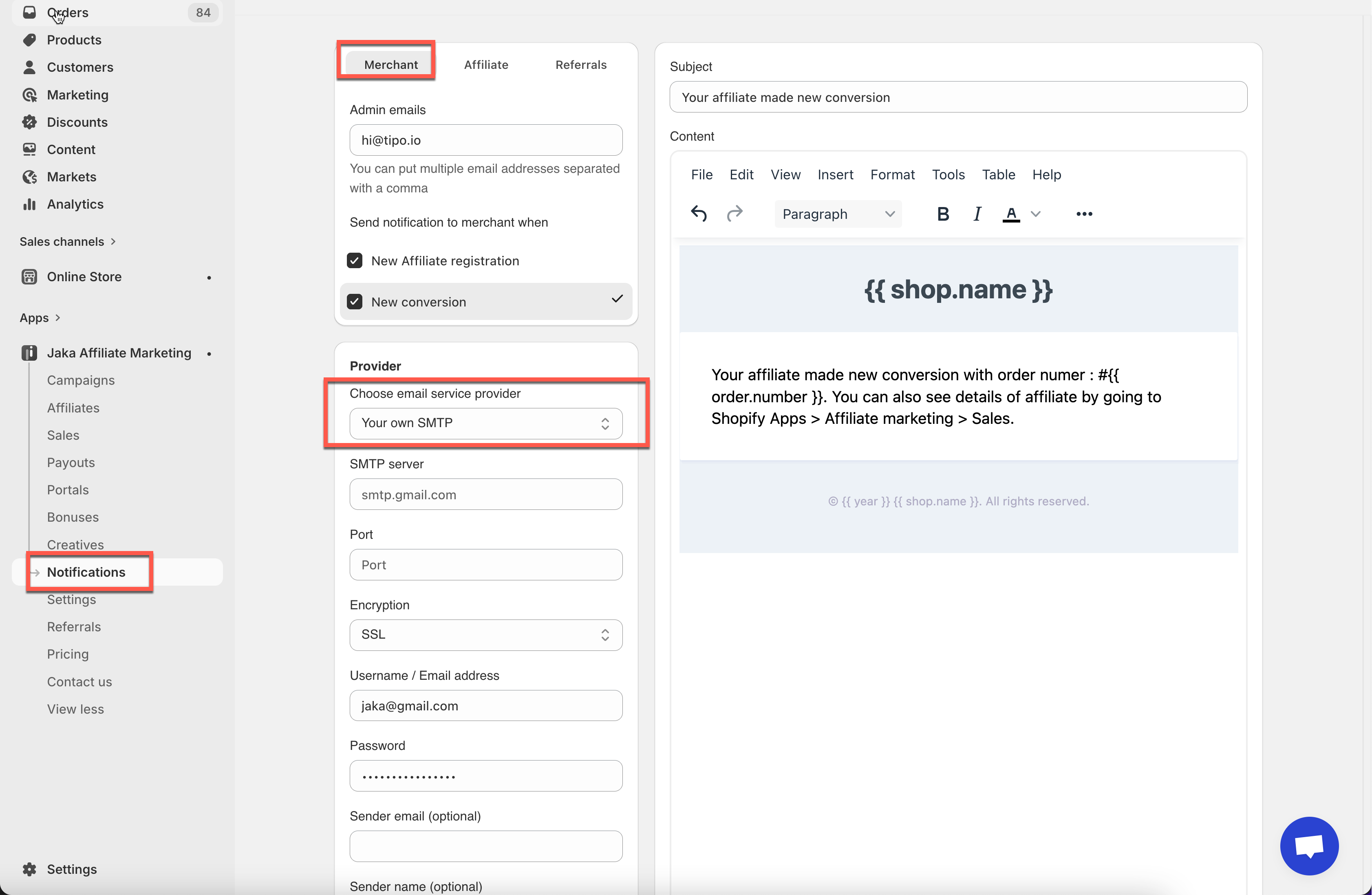
1. Go to the app > click Notifications > click on **Merchant** tab
2. In **Provider** section, select **Your own SMTP**
3. Fill in the following fields:
**1️⃣ SMTP Server:** Provided by your email service\
Example: `smtp.gmail.com`
2️⃣ **Port:** `465` or `587`
**3️⃣ Encryption:** `SSL` or `TLS`
**4️⃣ Username / Email Address:** The email address you want to send emails from.
Example: `yourstore@gmail.com`
**5️⃣ Password:** Your email password or app password from email provider
📌 For Gmail, you must use an **App Password** (explained below).
**6️⃣ Sender Email (Optional):** The “From” email shown to recipients.
Example: `hi@yourstore.com`
**7️⃣ Sender Name (Optional):** The name shown as the sender.
Example: `Your Store Name`
4. Click **Save**
5. Contact the support team of the app if you need to check the result
***
### 🔐 Example: Google (Gmail) SMTP Setup
Below is a **working example** using Gmail / Google Workspace.
#### Gmail SMTP Settings
***
### 🛠️ Common Issues & Tips
* ❌ Emails not sending?\
→ Check port & encryption match your provider
* ❌ Gmail not working?\
→ Make sure App Password is used
* ✅ Use a branded sender name to increase trust
* ✅ Start with Gmail if you’re new to SMTP