> For the complete documentation index, see [llms.txt](https://docs.jaka.app/shopify/llms.txt). Markdown versions of documentation pages are available by appending `.md` to page URLs; this page is available as [Markdown](https://docs.jaka.app/shopify/~/revisions/qBK2SlbkfUOfg9BW8kFy/affiliate-email-notifications/smtp-setup/create-app-password-for-gmail-smtp.md).
# Create app password for Gmail SMTP
If you want to use Gmail SMTP to send emails, Google may require an **App Password** (instead of your normal Gmail password).
This usually happens when your Google account has **2-Step Verification** turned on.
An **App Password** is a special 16-character password that allows apps (like PowerfulForm) to sign in securely.
***
#### 📝 Step 1: Turn on 2-Step Verification (Required)
Google only allows App Passwords if **2-Step Verification** is enabled.
1. Sign in to your Google Account.
2. Go to **Security**
3. Find **2-Step Verification**
4. Turn it **ON** and complete the setup.
✅ After this is enabled, you’ll be able to create an App Password.
Reference: [Enabling 2-Step Verification](https://support.google.com/accounts/answer/185839?hl=en\&co=GENIE.Platform%3DAndroid)
***
#### 📝 Step 2: Create an App Password (Gmail)
1. Go to your Google Account > **Security** > click **App passwords**
Or click [here](https://accounts.google.com/signin/v2/challenge/pwd?continue=https%3A%2F%2Fmyaccount.google.com%2Fapppasswords\&service=accountsettings\&osid=1\&rart=ANgoxcdLMmet3NvgjbdpzsMq0KoXNJyxtAoCLMbvDQUlJfgOx1aurad5UovfOx_VzIQCC3ngjDNa4NrhIcMzG1vVgoTmlSvedg\&TL=AC7eWV1D1q-bjvM25M6waxUjQCCabFxl0K9Bn0bW5AWXuTc3O0zPCDZxtbw2g3d0\&flowName=GlifWebSignIn\&cid=1) to generate **App password**
2. Enter a name you want > click **Create**
3. Copy the 16-character **App Password**
📌 Keep it safe, you will paste this password into your SMTP settings.
***
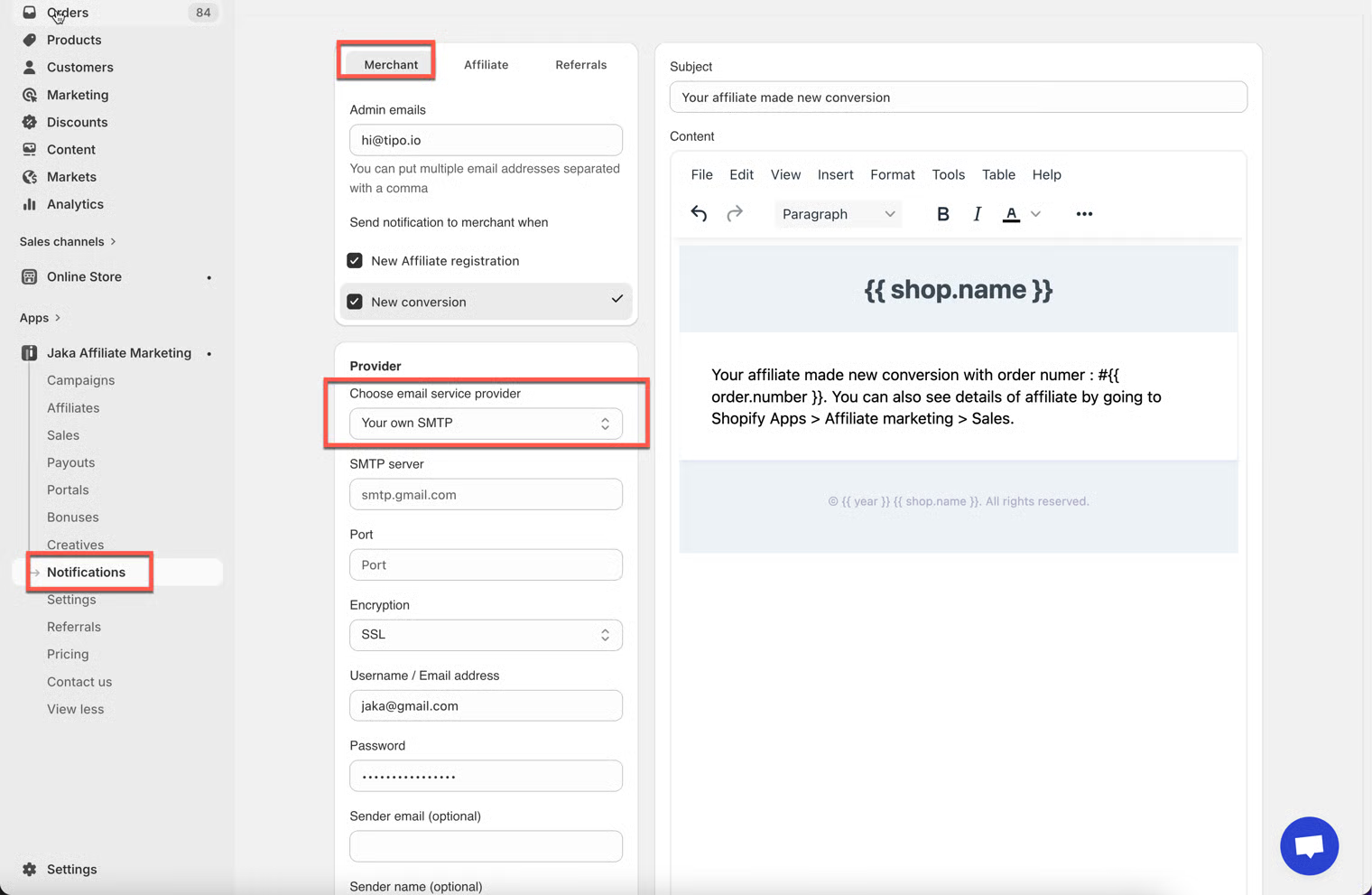
#### 📝 Step 3: Use the App Password in SMTP settings (in Powerful Contact Form Builder)
When setting up Gmail SMTP in Powerful Contact Form Builder:
* **SMTP Username:** your full Gmail address (example: `yourname@gmail.com`)
* **SMTP Password:** paste the **App Password** (NOT your normal Gmail password)
[Learn more](https://docs.jaka.app/shopify/affiliate-email-notifications/smtp-setup)