> For the complete documentation index, see [llms.txt](https://docs.jaka.app/shopify/llms.txt). Markdown versions of documentation pages are available by appending `.md` to page URLs; this page is available as [Markdown](https://docs.jaka.app/shopify/pages-and-links/google-recaptcha-setup.md).
# Google reCAPTCHA Setup
Google reCAPTCHA helps protect your affiliate forms from spam and automated bots.\
Once enabled, it adds a verification step to your affiliate registration page.
* You create reCAPTCHA keys in **Google reCAPTCHA Admin**
* You paste the keys into **Jaka Affiliate Marketing**
* Add the recaptcha block to the page
* reCAPTCHA is automatically applied to affiliate signup forms
***
### ⚙️ Step 1: Create reCAPTCHA Keys in Google
1\. Sign in your Google account. > Visit the [reCAPTCHA Admin Console](https://www.google.com/recaptcha/admin)
2\. Click on the “**+**” button or visit [this link](https://www.google.com/recaptcha/admin/create) to register a new site directly
3\. Enter a **label** for this new site. This label will help you to identify the site in the future.
4\. Choose the **reCAPTCHA type**
The available options are:
* **reCAPTCHA v2:** The reCAPTCHA v2 requires clicking the “I’m not a robot” checkbox and submitting an image recognition challenge. But, if you choose the “**Invisible reCAPTCHA badge**” option, Google will validate the request in the background.
* **reCAPTCHA v3:** The reCAPTCHA v3 runs in the background and generates a score based on a user’s behavior on your site. If the score is satisfactory, Google won’t bother the user with any verification challenge.
5\. Enter the **Domains**: add the domain names for your website where you want to use reCAPTCHA. You can enter multiple valid domains here.
For example: The page I want to add reCAPTCHA is . I'll add the domain [booking-nga.jaka.app](https://booking-nga.jaka.app/register) to the reCAPTCHA config.
6\. Then accept the reCAPTCHA terms and click on the **SUBMIT** button
7\. You’ll get your Site Key and Secret Key right after clicking on the ‘Submit’ button
***
### ⚙️ Step 2: Add Keys to Jaka Affiliate Marketing
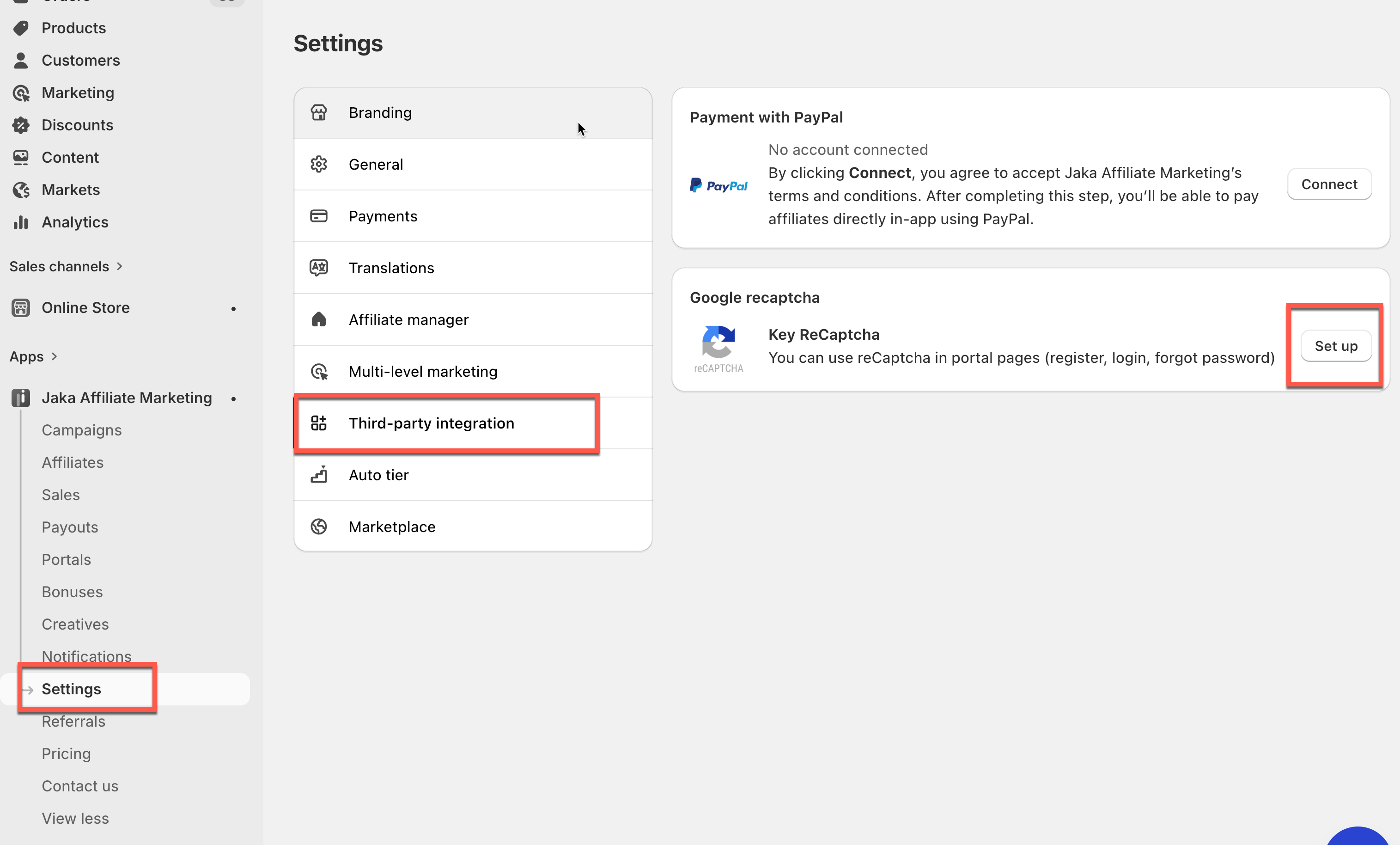
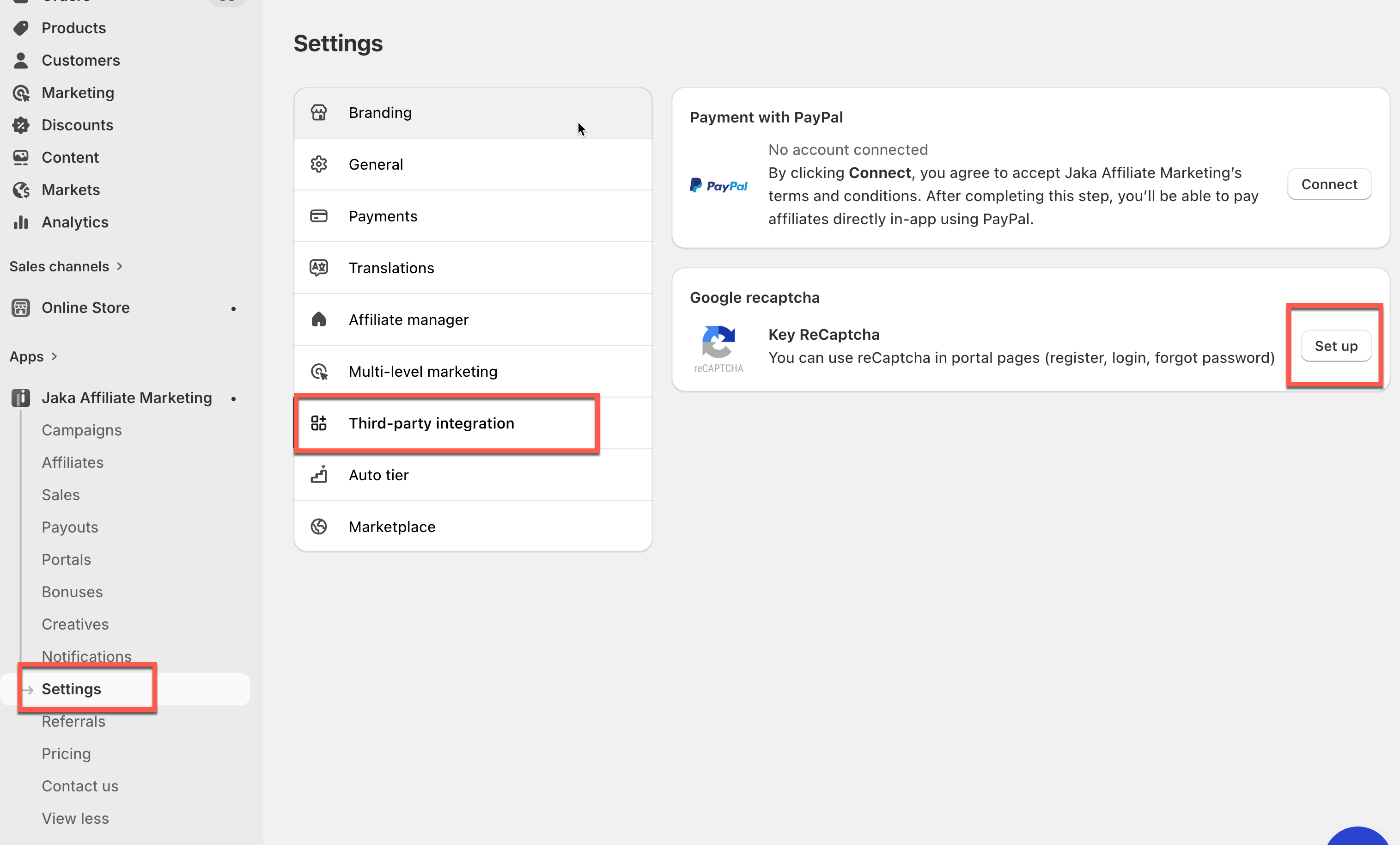
1\. Open the app > click **Settings** > **Third-Party integration**
2. In Google **reCAPTCHA**, click **Set up**
3. Add **Site key** and **Secret key** of reCAPTCHA
4. Click **Save**
***
### ⚙️ Add reCaptcha Block to Landing Page
1. From the app menu on left side, click **Portals**
2. Click **Customize** button of the page template you want to edit
4\. Click **Add items** > add **reCAPTCHA** element > **Save**
5\. Preview the page to check the the result
***
### ▶️ Tutorial video
{% embed url="" %}
***