> For the complete documentation index, see [llms.txt](https://docs.jaka.app/shopify/llms.txt). Markdown versions of documentation pages are available by appending `.md` to page URLs; this page is available as [Markdown](https://docs.jaka.app/shopify/pages-and-links/branding-and-logo.md).
# Branding & Logo
The **Branding** settings let you control how your brand appears across all **affiliate-facing pages**, including portals and emails.\
This helps affiliates recognize your brand and creates a professional, consistent experience.
Steps to add logo
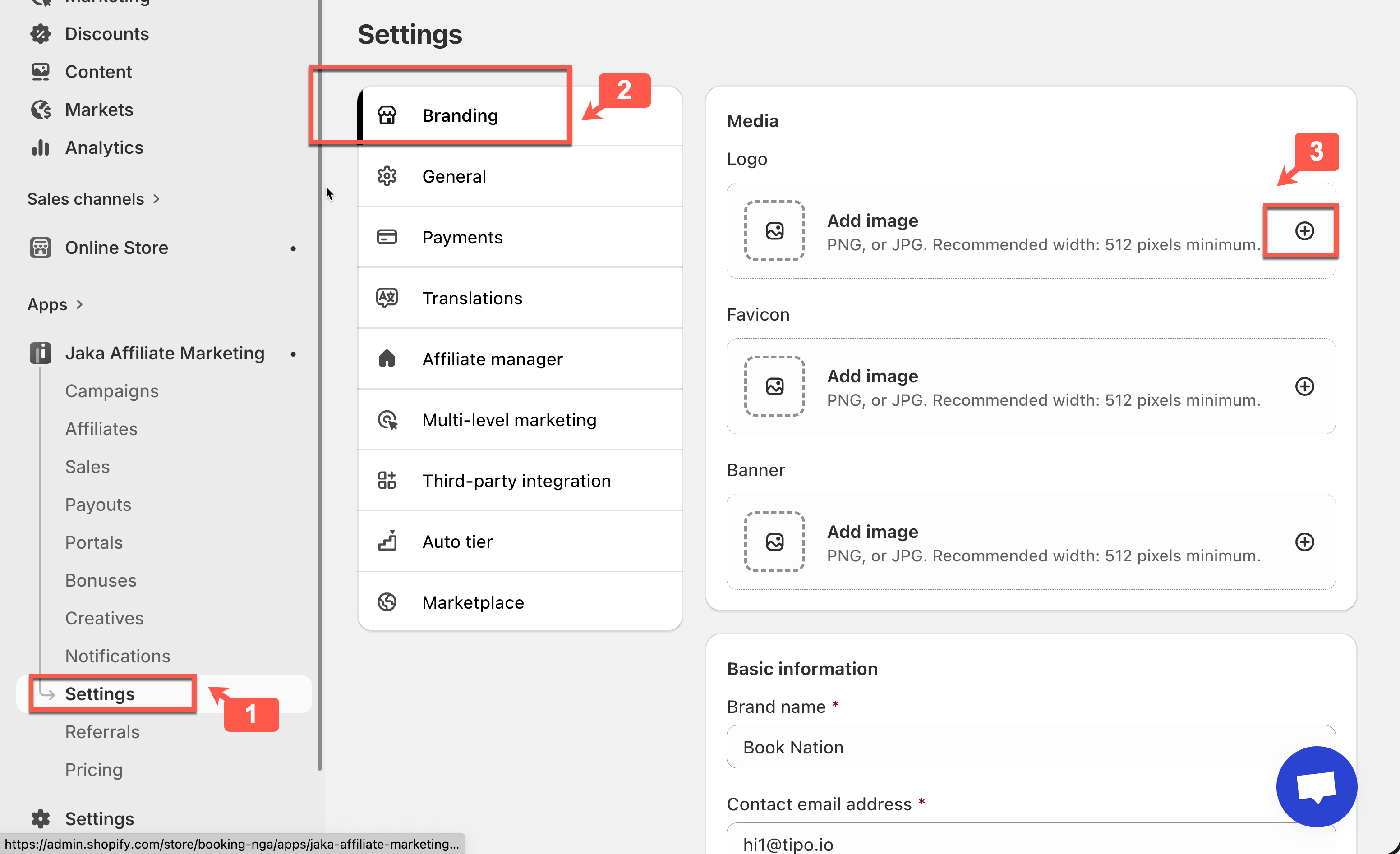
1. Open the app > go to **Settings** > **Branding**
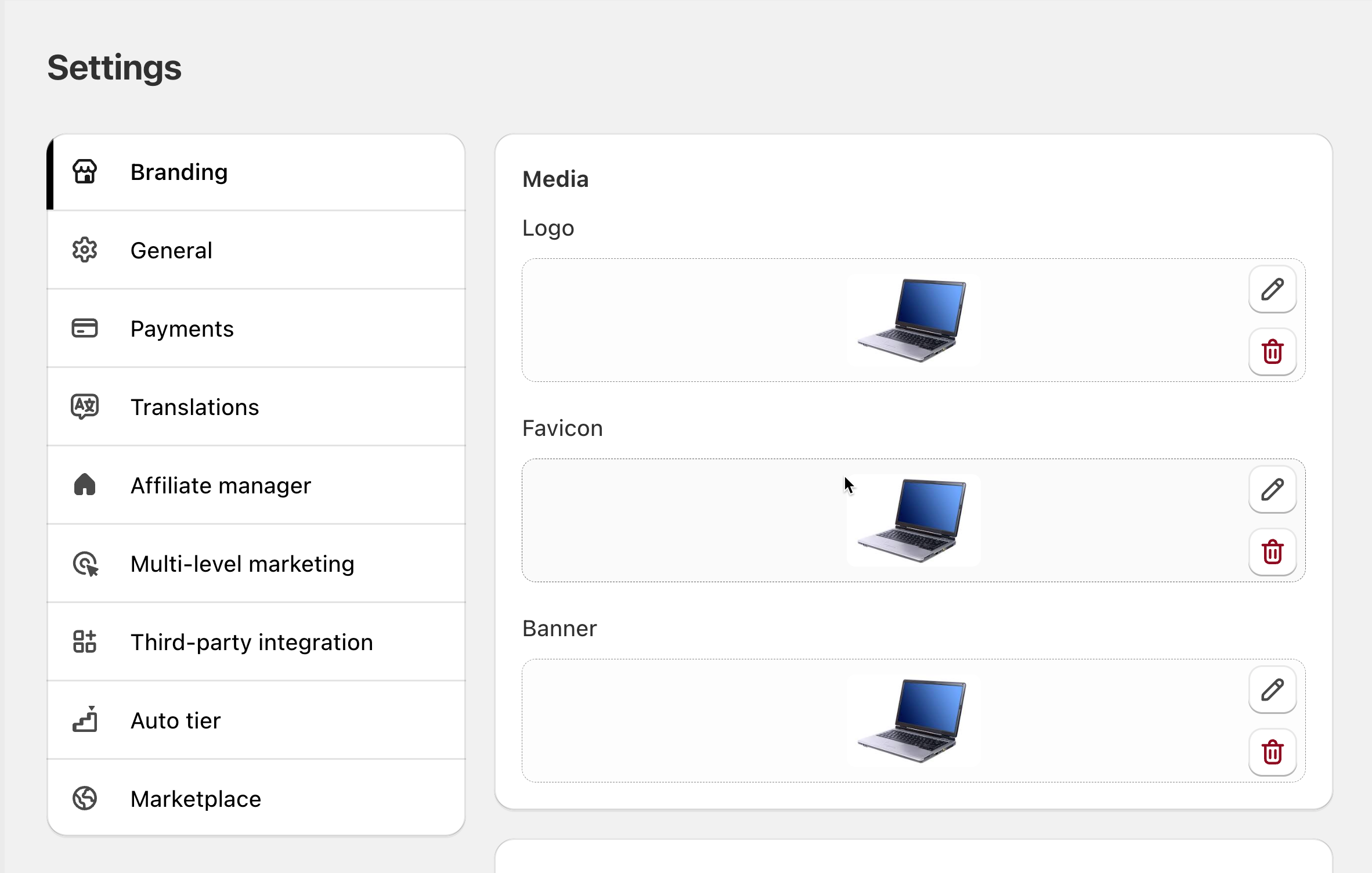
2. In **Media** section, cick (+) icon to add image
3. Click **Save**
***
### 🖼 Media Settings
You can upload the following brand assets:
#### Logo
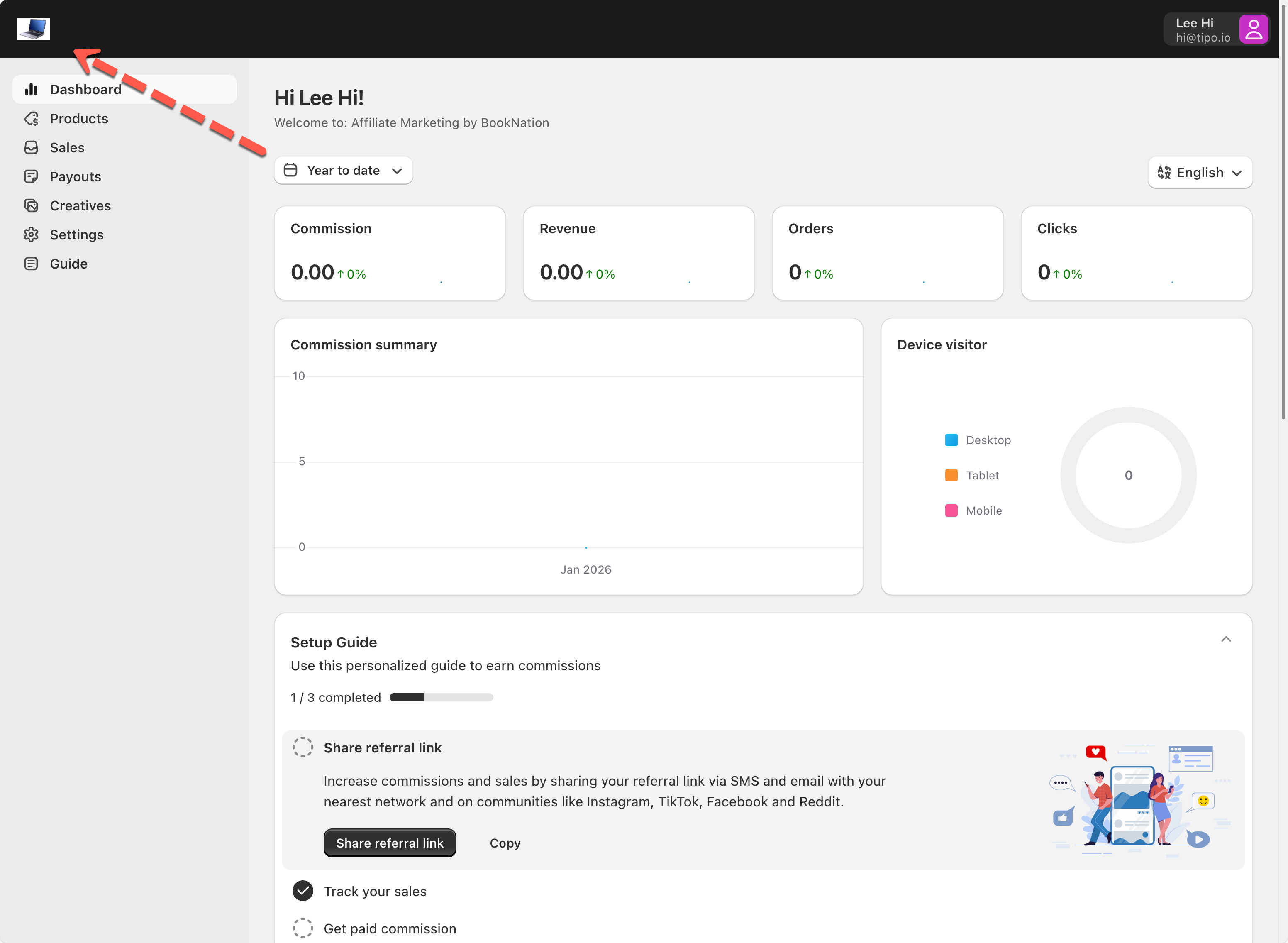
* Displayed on affiliate portal pages
* Appears in headers and key sections
* Recommended format: **PNG or JPG**
* Minimum width: **512px**
#### Favicon
* Shown in the browser tab of affiliate pages
* Helps affiliates quickly identify your portal
* Recommended: square image (PNG or JPG)
#### Banner
* Used on affiliate landing or portal pages
* Ideal for promotions, brand visuals, or campaigns
* Recommended width: **512px or larger**
> 💡 **Tip:** Use high-quality images with consistent colors to match your main store branding.