> For the complete documentation index, see [llms.txt](https://docs.jaka.app/shopify/llms.txt). Markdown versions of documentation pages are available by appending `.md` to page URLs; this page is available as [Markdown](https://docs.jaka.app/shopify/pages-and-links/affiliate-landing-page.md).
# Affiliate landing page
### ℹ️ What is the Affiliate Landing Page?
The Affiliate Landing Page helps you:
* Introduce your affiliate program
* Explain benefits and commissions
* Encourage visitors to register as affiliates
It is usually the first page affiliates see before signing up.
***
### ⚙️ How to Access the Landing Page Editor
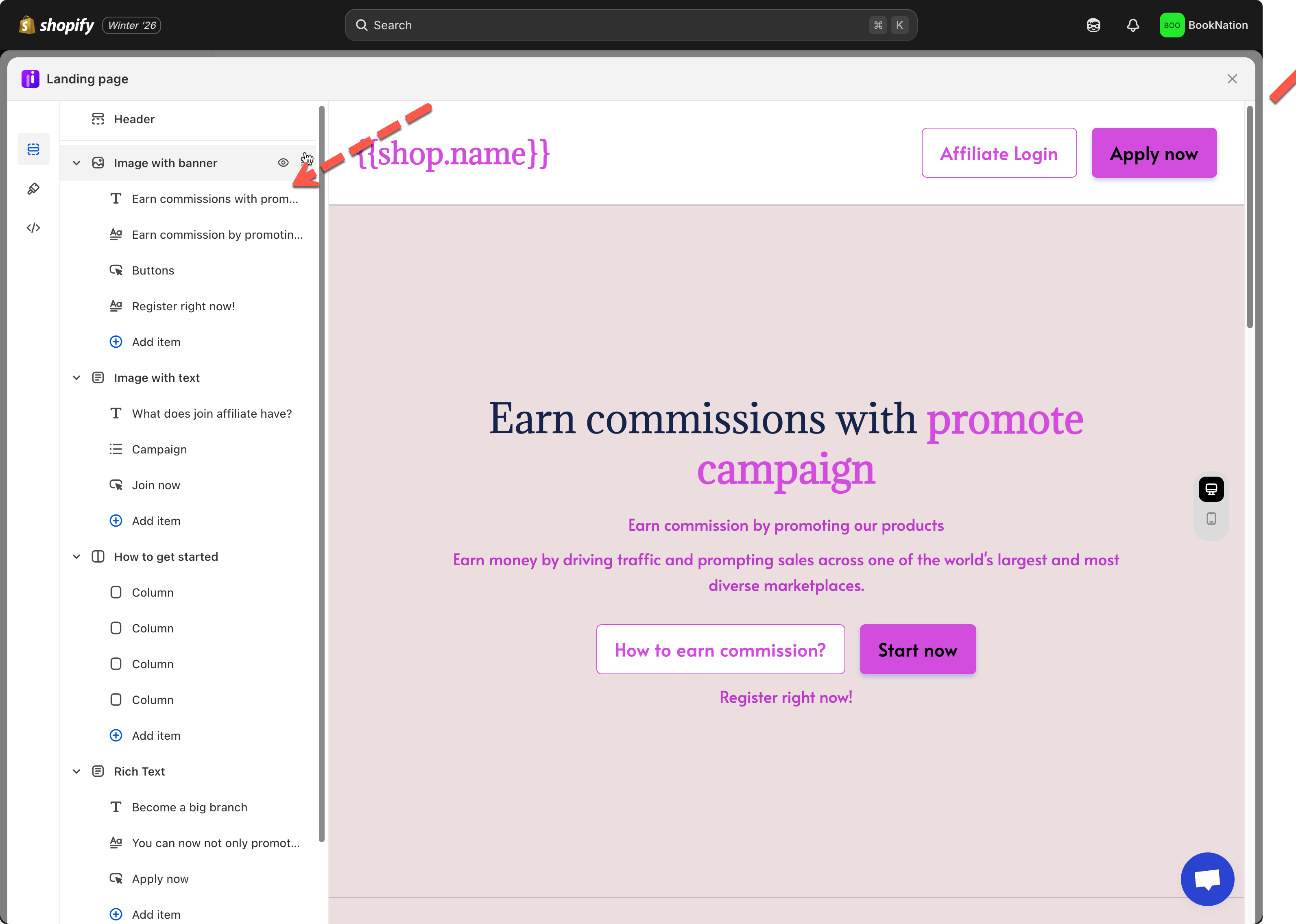
1. Go to **Jaka Affiliate Marketing → Portals**
2. Find **Landing page**
3. Click **Customize**
You’ll enter the page editor, where changes are shown in real time.
***
### ⚙️ Page Structure (Blocks)
The landing page is built using **blocks**. You can add, edit, reorder, or remove them.
Common blocks include:
* **Image with banner** – Hero section at the top
* **Image with text** – Explain benefits or program details
* **Buttons** – “Apply now”, “Join now”
* **Rich text** – Additional descriptions or notes
* **Footer** – Links, shop name, legal pages
👉 Click any block on the left panel to edit its content.
***
### ✏️ Edit Images & Layout
Inside blocks like Image with text, you can:
* Change the image
* Adjust image position (left / right / top)
* Edit headings and descriptions
* Update button text and links
Changes appear instantly in the preview.
***
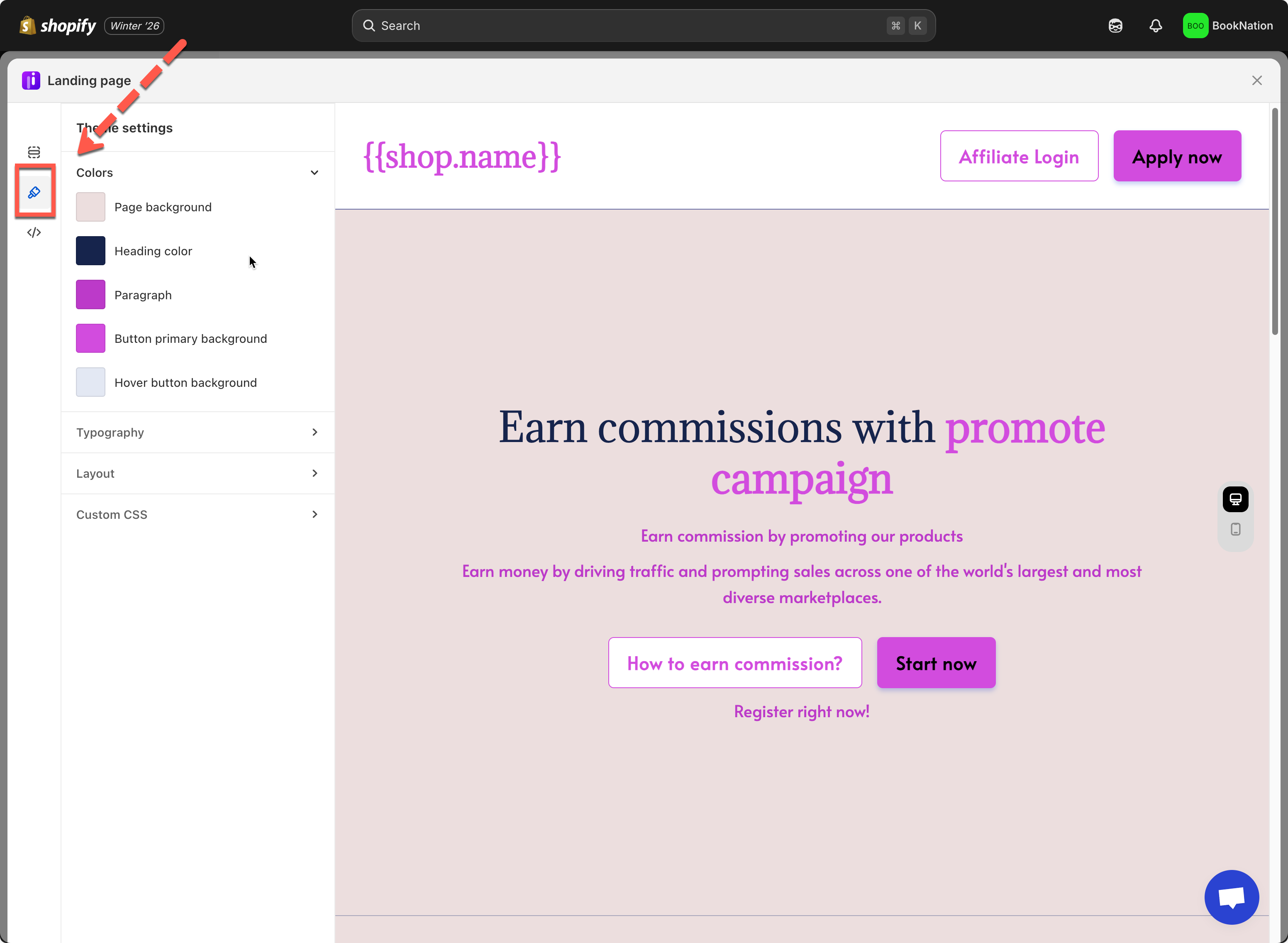
### 🎨 Customize Page Style (Theme Settings)
Click the **🎨 Theme settings** icon to control the overall look:
You can customize:
* Page background color
* Heading & text colors
* Button colors (normal & hover)
* Fonts (Typography)
* Layout spacing
* Custom CSS (optional)
This helps match the landing page with your brand style.
{% hint style="info" %}
Remember to click Save after making any changes.
{% endhint %}
***
### ▶️ Tutorial video
{% embed url="" %}
***
.png?alt=media&token=942d7bcd-6a52-4332-8ffb-1cd5e57d4719)